Laptop Security Explained: The Digital House Framework
Your laptop operates like a fortified house where the operating system acts as the foundation, and every application is a window that requires specific locking mechanisms to remain secure.
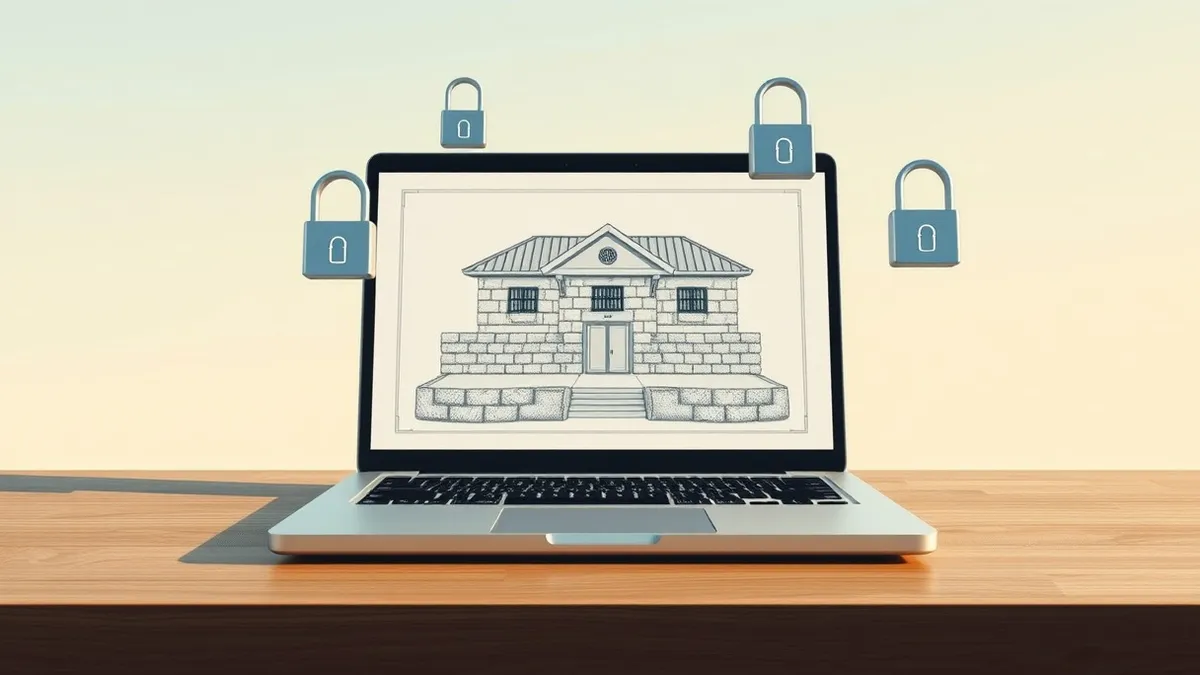
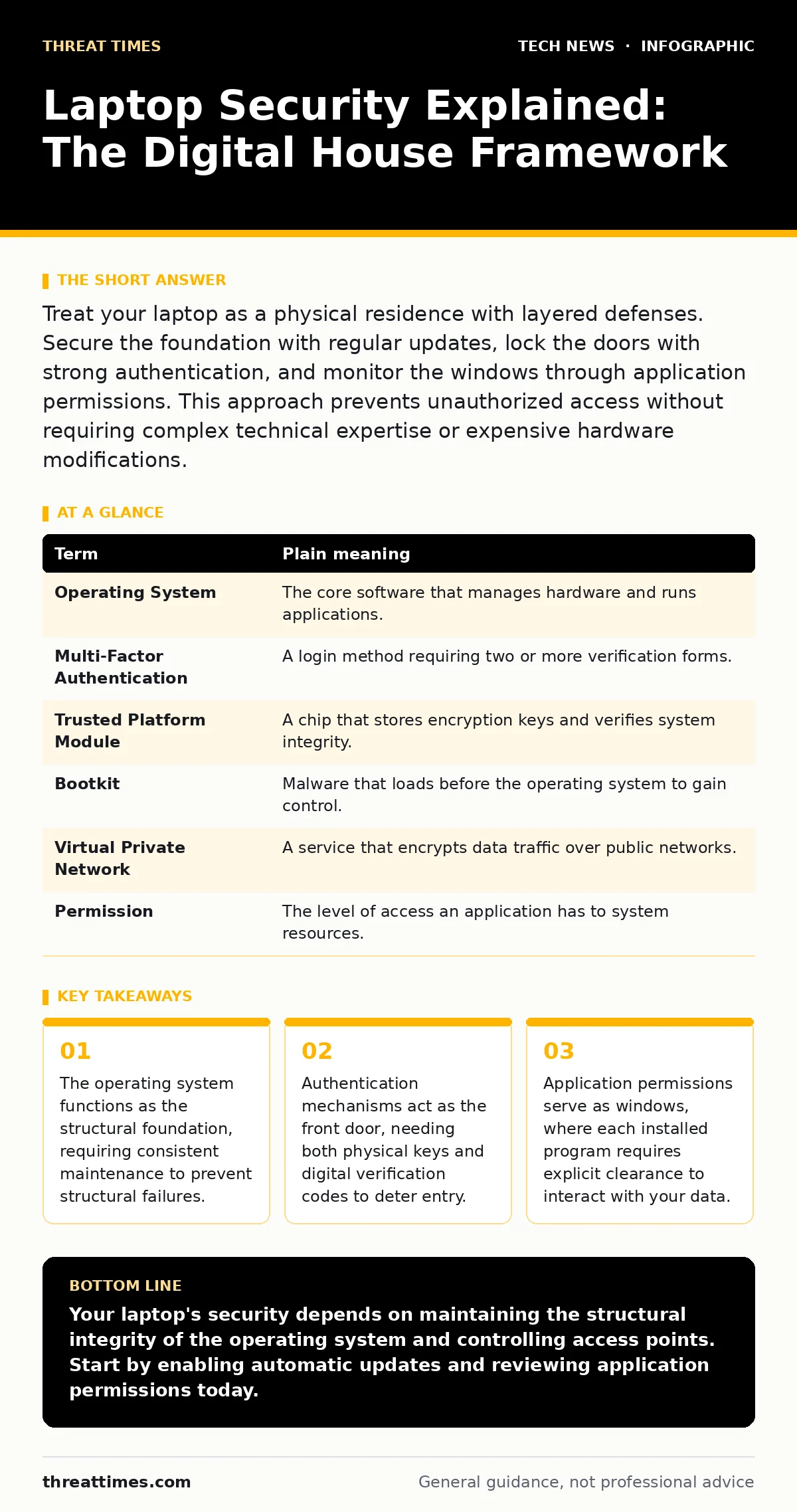
Treat your laptop as a physical residence with layered defenses. Secure the foundation with regular updates, lock the doors with strong authentication, and monitor the windows through application permissions. This approach prevents unauthorized access without requiring complex technical expertise or expensive hardware modifications.
The Structural Foundation of Your Device
Imagine your laptop is a house. The operating system is the foundation and the walls. If the foundation cracks, the entire structure becomes unstable. You cannot build a secure home on a crumbling base. The operating system manages all hardware resources and enforces security policies. When you ignore system updates, you are ignoring cracks in the concrete. These cracks allow attackers to bypass the outer walls entirely.
The foundation must be maintained regularly. Updates often contain patches for vulnerabilities that were previously unknown. These vulnerabilities are flaws in the code that allow unauthorized access. By delaying updates, you leave the foundation exposed to erosion. This erosion happens silently until the structure fails.
Securing the Front Door
The front door of your digital house is your login credential. A simple password is like a single key under the doormat. Anyone who finds it can enter. Multi-factor authentication adds a second layer, like a keypad code required after turning the key. This ensures that even if someone steals your key, they cannot open the door.
This mechanism relies on two different types of evidence. One thing you know, such as a password. One thing you have, such as a smartphone or security key. This combination significantly reduces the risk of unauthorized entry. It forces an attacker to compromise two separate systems simultaneously.
Windows and Application Permissions
Every application you install is a window in your house. Windows allow light and air, but they also allow entry if unlocked. When you install software, you grant it permission to access certain parts of your system. Some applications need access to your camera or microphone. Others need access to your file storage.
You must verify why an application needs specific access. A calculator does not need access to your contacts. A text editor does not need access to your camera. Granting unnecessary permissions is like leaving a window open in a public park. It invites trouble. Review these permissions regularly. Disable access for applications you no longer use or trust.
The Smart Lock System
Modern laptops include a Trusted Platform Module, or TPM. This is a dedicated chip that stores cryptographic keys. Think of it as a smart lock that only opens if the house structure is intact. If an attacker tampers with the foundation, the smart lock refuses to engage. This prevents bootkits, which are malicious programs that load before the operating system.
The TPM ensures that the system has not been altered since it was last trusted. It provides a root of trust. This root of trust is the starting point for verifying the integrity of the entire system. Without it, you cannot be sure that the operating system is genuine. This hardware-based security is more reliable than software-only solutions.
The Neighborhood Watch
Your laptop does not exist in isolation. It connects to networks, much like a house sits in a neighborhood. The security of your network affects the security of your device. If the neighborhood lacks streetlights, burglars operate with ease. Similarly, an insecure Wi-Fi network exposes your data to interception.
Public Wi-Fi networks are like unguarded parks. They offer convenience but lack security. Data transmitted over these networks can be read by anyone nearby. Use a Virtual Private Network, or VPN, to create a secure tunnel. This tunnel encrypts your data, making it unreadable to eavesdroppers. It adds a layer of privacy to your communications.
For deeper insights into network protection, see our guide on Wi-Fi security. Understanding how networks function helps you secure the perimeter of your digital house.
Mini Glossary of Terms
| Term | Plain meaning |
|---|---|
| Operating System | The core software that manages hardware and runs applications. |
| Multi-Factor Authentication | A login method requiring two or more verification forms. |
| Trusted Platform Module | A chip that stores encryption keys and verifies system integrity. |
| Bootkit | Malware that loads before the operating system to gain control. |
| Virtual Private Network | A service that encrypts data traffic over public networks. |
| Permission | The level of access an application has to system resources. |
Three Steps to Secure Your Laptop
- Enable automatic updates for your operating system and critical applications. This ensures your foundation remains solid against known threats.
- Activate multi-factor authentication on all accounts that support it. This strengthens the front door against credential theft.
- Review application permissions monthly. Remove access for apps that no longer need it, closing unnecessary windows.
For related topics on securing connected devices, refer to our guides on smart home security and edge computing security. These areas share similar principles of perimeter defense and data integrity. Understanding virtualization security can also help if you run multiple operating systems on one machine.
Key takeaways
- The operating system functions as the structural foundation, requiring consistent maintenance to prevent structural failures.
- Authentication mechanisms act as the front door, needing both physical keys and digital verification codes to deter entry.
- Application permissions serve as windows, where each installed program requires explicit clearance to interact with your data.
Your laptop's security depends on maintaining the structural integrity of the operating system and controlling access points. Start by enabling automatic updates and reviewing application permissions today.
Frequently asked questions
Does a firewall protect my laptop from all threats?
No. A firewall monitors network traffic but does not protect against malware installed via USB drives or phishing emails. It is one layer of defense, not a complete solution.
Is biometric authentication safer than passwords?
Biometrics are convenient but cannot be changed if compromised. Passwords can be reset. Use biometrics as a second factor, not the only factor, for maximum security.
Do I need antivirus software if I use a Mac?
Yes. While macOS has built-in protections, it is not immune to malware. Antivirus software provides an additional layer of detection and prevention for known threats.
How often should I change my passwords?
Change passwords immediately if you suspect a breach. Otherwise, use unique, strong passwords for each account. Regular rotation is less important than uniqueness and complexity.
How this guide was produced: written by the Threat Times editorial team with AI assistance, checked against the public references listed below, and reviewed when the facts change. See our editorial policy or report an error.