USB Device Control: Step-by-Step Implementation Strategy
Blocking all removable media prevents data theft but breaks standard workflows like printer drivers and software updates, requiring a nuanced allow-list approach rather than a blanket ban.
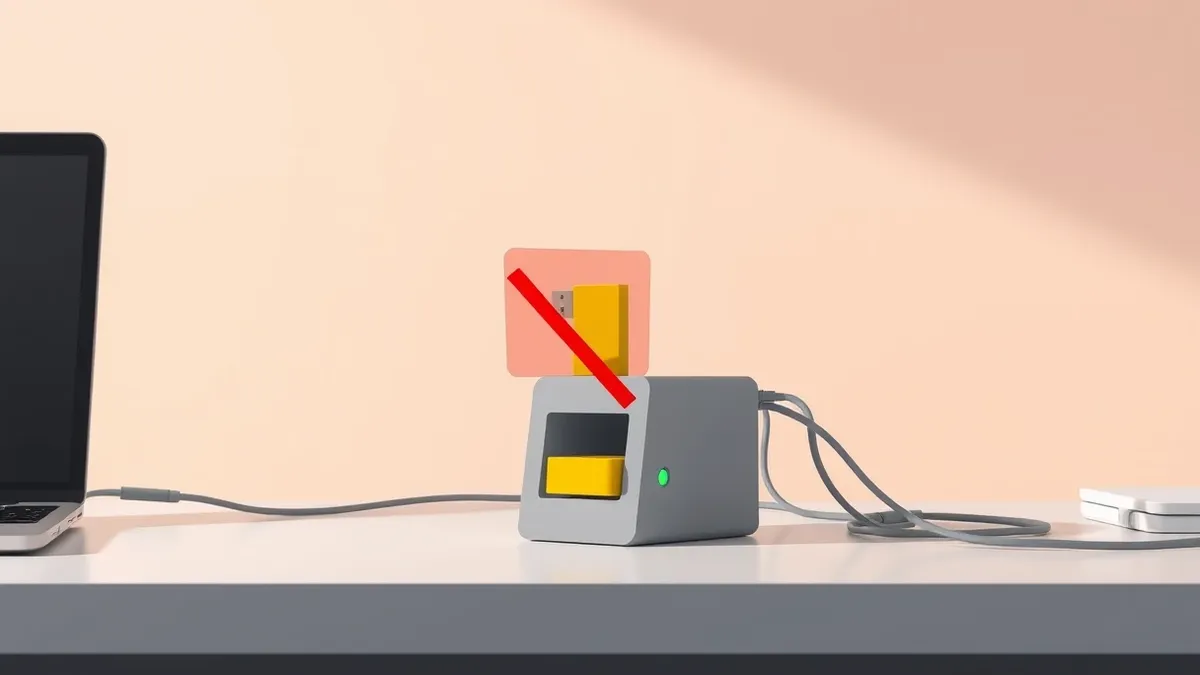
Implement USB control by auditing current device usage, defining strict allow-lists for specific hardware IDs, deploying Group Policy or Endpoint Detection settings, and validating connectivity. This process balances security against operational friction by permitting only verified devices while blocking unknown or potentially malicious storage media.
Audit Existing Device Dependencies
Before restricting access, you must understand what your environment currently relies on. Many organizations assume USB ports are only for data storage. This assumption is incorrect. Printers, scanners, smart card readers, and even some network interface cards use the Universal Serial Bus standard. Blocking the entire class of devices will halt operations.
Imagine a finance department that uses a specific token reader for authentication. If your policy blocks all USB Human Interface Devices, employees cannot log in. You lose productivity immediately. Start by enabling audit logging on a subset of machines. Run this logging for two weeks to capture every device connection. Review the logs to identify unique hardware IDs, not just generic device names.
This audit reveals hidden dependencies. You might find that a legacy application installs drivers via a USB dongle. You also identify devices that connect but never transfer data. Distinguish between storage devices and input devices. Storage devices pose a higher risk for data exfiltration and malware introduction. Input devices pose a lower risk but can still be used for keylogging or man-in-the-middle attacks if the firmware is compromised.
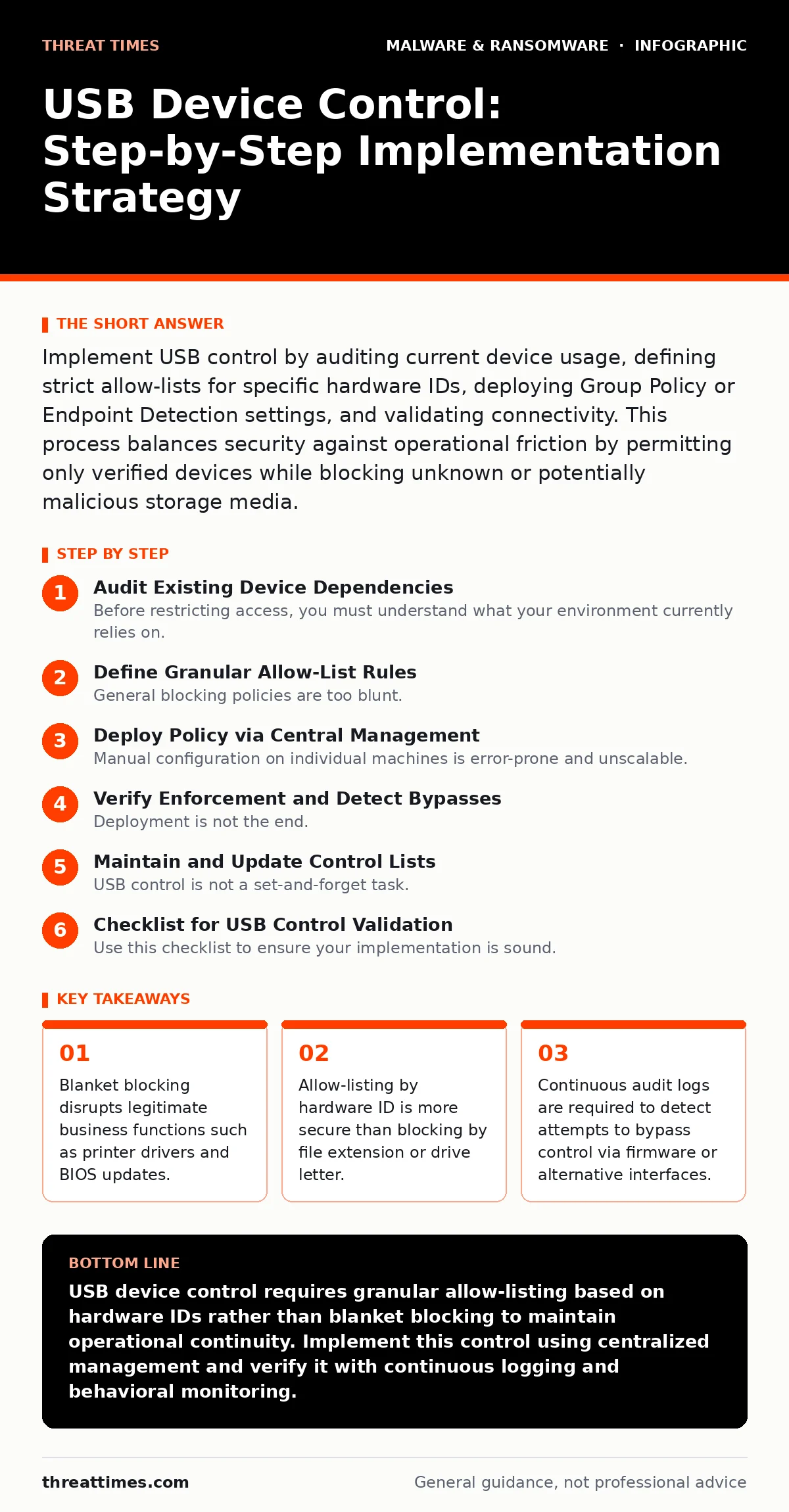
Define Granular Allow-List Rules
General blocking policies are too blunt. They treat a company-issued printer the same as an untrusted flash drive. You need rules that distinguish between trusted and untrusted hardware. The most reliable method is allow-listing by Vendor ID and Product ID. These identifiers are embedded in the device hardware and are difficult to spoof without specialized tools.
Create a policy that blocks all removable storage by default. Then, create exceptions for specific hardware IDs. Do not allow exceptions based on drive letters or file system types. Attackers can change drive letters and format drives to mimic legitimate systems. Hardware IDs remain constant across reboots and reconnections.
Consider the risk of firmware malware. Some attacks target the controller chip inside the USB device itself. Even if you allow-list the device, the firmware could contain malicious code. You cannot easily detect this with standard file scanning. You must rely on endpoint detection and response capabilities to monitor for unusual behavior after a device connects. This approach reduces the attack surface without breaking legitimate workflows.
Deploy Policy via Central Management
Manual configuration on individual machines is error-prone and unscalable. You must use centralized management tools to enforce USB control. Group Policy Objects on Windows systems or configuration profiles on macOS are the standard mechanisms. These tools push settings to endpoints automatically. They ensure consistency across the organization.
Configure the policy to deny write access to removable storage. This prevents data exfiltration while allowing read-only access for necessary operations. You can further restrict read access if your risk model requires it. For high-security environments, block all removable media except explicitly allowed devices. For general office environments, allow company-issued devices and block unknown ones.
Test the policy in a sandbox environment first. Apply it to a small group of test machines. Verify that allowed devices still work. Verify that blocked devices are rejected. Check for error messages that might confuse users. Clear, helpful error messages reduce support tickets. Vague errors lead to users seeking workarounds, which introduces new risks.
Step 1: Enable Audit Logging
Enable detailed audit logging for USB device connections. This captures the Vendor ID, Product ID, and serial number of every connected device. You cannot enforce what you cannot see. Without logs, you are guessing at dependencies.
You know this step worked when the security information and event management system receives events for every USB connection. Check the logs for completeness. Ensure no connections are missing. If logs are sparse, adjust the filtering rules. You need full visibility before you start blocking.
Step 2: Create Base Block Policy
Create a group policy object that blocks all removable storage devices. Do not touch fixed disks or internal buses. This policy serves as the default deny stance. It ensures that any new or unknown device is rejected by default.
You know this step worked when a test flash drive fails to mount on a controlled machine. The operating system should not assign a drive letter. The device manager should not show the device as ready. If the drive mounts, the policy has not applied correctly. Check for inheritance issues or conflicting policies.
Step 3: Add Hardware ID Exceptions
Identify the hardware IDs for all approved devices. Add these IDs to the allow-list within your policy. This step requires precision. A single digit error in the ID will block a legitimate device or allow a malicious one. Verify each ID against the physical device.
You know this step worked when an approved device connects and functions normally. The operating system recognizes the device. Drivers load without error. The application using the device operates as expected. If the device fails, re-check the ID format. Ensure you are using the correct registry path or policy syntax.
Step 4: Deploy to Pilot Group
Apply the configured policy to a small pilot group of users. Choose users who are not in critical path operations. This limits the impact of any unforeseen issues. Monitor the pilot group for two weeks. Collect feedback on usability and functionality.
You know this step worked when there are no critical workflow disruptions. Users can perform their daily tasks. Support tickets related to USB devices remain low. If tickets spike, review the logs. Identify which devices are being blocked incorrectly. Adjust the allow-list accordingly.
Verify Enforcement and Detect Bypasses
Deployment is not the end. You must verify that the policy holds over time. Attackers will try to bypass your controls. Some methods are simple, like using a different port. Others are sophisticated, like modifying firmware. You need a multi-layered verification strategy.
Check that the policy applies after reboots and updates. Ensure that temporary profiles do not reset settings. Verify that remote desktop sessions respect local USB policies. Some organizations allow USB redirection in remote sessions. This can create a backdoor if not configured correctly. Ensure that redirection is disabled or strictly controlled.
Use endpoint detection tools to monitor for process injection or driver loading from USB devices. Standard file scanning misses memory-resident malware. You need behavioral analysis to catch these threats. If a device connects and immediately attempts to execute code, the endpoint agent should block it. This adds a layer of defense beyond access control.
Maintain and Update Control Lists
USB control is not a set-and-forget task. New devices are introduced regularly. Legacy devices are retired. Your allow-list must evolve with your environment. Schedule quarterly reviews of the allow-list. Remove entries for devices that are no longer in use. This reduces the attack surface.
Add new approved devices to the list before deployment. Coordinate with department heads to anticipate new hardware needs. Do not wait for users to report issues. Proactive updates prevent friction. Document the reason for each exception. This documentation helps during audits and incident investigations.
Monitor logs for repeated connection attempts of blocked devices. High frequency attempts might indicate a user trying to bypass controls or an automated attack. Investigate these anomalies. Block the user account if necessary. Escalate to security operations if the pattern suggests a targeted attack.
See also: Endpoint Detection and Response Examples: How EDR Stops Hidden Threats · How Polymorphic Malware Works: The Step-by-Step Mutation Process
Checklist for USB Control Validation
Use this checklist to ensure your implementation is sound. Each item addresses a common failure point. Complete these checks before declaring the project successful.
- Audit logs capture all USB connections for at least two weeks.
- Base policy blocks all removable storage by default.
- Allow-list contains only verified hardware IDs for approved devices.
- Pilot group reports no critical workflow disruptions.
- Endpoint detection monitors for malicious behavior after connection.
- Remote desktop USB redirection is disabled or strictly controlled.
- Quarterly review process is documented and scheduled.
- User communication explains the policy and support process.
Handling Legacy and Special Cases
Some environments have legacy systems that do not support modern USB standards. These systems might require older drivers or hardware. You cannot simply block them. You must isolate them. Place these systems on a separate network segment. Apply stricter controls to that segment.
Consider the use of secure data diodes. These hardware devices allow data to flow in one direction only. They prevent data exfiltration while allowing necessary inputs. This is useful for high-security research or financial environments. It adds physical security to your logical controls.
Remember that ransomware attack chain often starts with a simple vector. A blocked USB drive might push an attacker to use phishing or malicious npm packages. Your USB control shifts the attack surface. It does not eliminate risk. You must maintain a holistic security posture. Address other vectors with equal rigor.
Key takeaways
- Blanket blocking disrupts legitimate business functions such as printer drivers and BIOS updates.
- Allow-listing by hardware ID is more secure than blocking by file extension or drive letter.
- Continuous audit logs are required to detect attempts to bypass control via firmware or alternative interfaces.
USB device control requires granular allow-listing based on hardware IDs rather than blanket blocking to maintain operational continuity. Implement this control using centralized management and verify it with continuous logging and behavioral monitoring.
Frequently asked questions
Does USB device control stop all malware from entering the system?
No. It only blocks malware that arrives via USB storage or input devices. Malware can still enter through email attachments, web downloads, or network shares. You must use layered defenses.
Can users bypass USB control by changing the file extension?
Yes. If you rely on file extension filtering, users can rename files. This is why hardware ID allow-listing is superior. It blocks the device regardless of the file type or name.
How do I handle emergency data transfers?
Define a formal exception process. Users must request temporary access. Security teams must approve and monitor the session. Log all data transferred during the exception. Revoke access immediately after.
Does this affect Thunderbolt or USB-C ports?
Yes. These ports are variants of the USB standard. Your policy should explicitly cover all USB standards, including Thunderbolt, to prevent bypasses via high-speed connections.
How this guide was produced: written by the Threat Times editorial team with AI assistance, checked against the public references listed below, and reviewed when the facts change. See our editorial policy or report an error.