USB Drop Attack Mistakes and How to Block Them
Physical media bypasses network defenses, making endpoint configuration the only barrier between a dropped drive and total system compromise.

USB drop attacks exploit curiosity and default system behaviors. You remain vulnerable if you enable autorun, ignore unknown devices, or fail to restrict peripheral access. Fix these gaps by disabling automatic execution, enforcing least privilege, and monitoring hardware connection logs to prevent silent malware installation.
Mistake 1: Leaving Autorun Enabled
Operating systems often include features that automatically execute commands when a new storage device connects. Attackers exploit this by formatting a USB drive to trigger a script or payload the moment the device is recognized. This bypasses the need for a user to click anything, turning a simple plug-in event into an immediate infection vector.
Why it hurts:
Automatic execution removes the friction of human error. If the drive contains malicious code, it runs with the privileges of the current session before you can react. This allows attackers to install keyloggers, backdoors, or ransomware in seconds. The damage occurs before you even see a file explorer window open.
The fix:
Disable autorun and autoplay features at the operating system level. Group policy objects on Windows or configuration profiles on macOS can enforce this setting across all devices. This ensures that no code executes automatically when a peripheral connects. You must manually open the drive to view its contents, which gives you time to inspect the device or scan it with antivirus software before any interaction occurs.
Mistake 2: Using Administrator Accounts for Daily Tasks
Many users operate their primary workstations with full administrative privileges to avoid permission prompts. This convenience creates a dangerous environment for physical attacks. If you plug in a malicious USB drive and accidentally execute a file, that file inherits your high-level permissions. It can modify system files, install persistent drivers, and disable security tools without further prompts.
Why it hurts:
Administrative access grants the ability to change system-wide settings and install software. A USB drop payload executed with these rights can compromise the entire operating system. It can also create new admin accounts, making it difficult to remove the attacker later. The breach becomes persistent and hard to detect because the attacker has control over the logging and monitoring tools.
The fix:
Implement privileged access management to separate daily work from administrative tasks. Use a standard user account for routine activities like email and browsing. Reserve administrator credentials for specific maintenance tasks and require them only when necessary. This limits the scope of any accidental execution. Even if a USB payload runs, it cannot modify critical system components or install persistent malware without elevated privileges.
Mistake 3: Ignoring Unknown Devices in Public Areas
Security culture often focuses on digital threats, neglecting the physical environment. Attackers leave USB drives in high-traffic areas like parking lots, lobbies, or conference rooms. They rely on human curiosity. Finding a device labeled with intriguing content, such as "Employee Salaries" or "Project Blueprints," tempts users to plug it in to see what is inside. This behavioral exploit is as effective as any phishing email.
Why it hurts:
Curiosity overrides caution. When you plug in an unknown device, you trust the content over the risk. The device may not contain files at all but instead emulate a keyboard or network adapter. It can type commands into any open window, transferring funds or exfiltrating data before you realize what happened. The physical presence of the device makes the threat feel tangible and harmless, lowering your guard.
The fix:
Treat any unattended USB device as a potential weapon. Do not plug it into your computer. Instead, hand it to your security team for analysis. They can examine the device in an isolated environment to determine if it contains malware. This practice removes the risk from the endpoint and ensures that suspicious items are handled by professionals. It also reinforces a culture of caution regarding physical media.
Mistake 4: Failing to Block USB Mass Storage via Policy
Default operating system settings often allow any USB mass storage device to be mounted. Without explicit restrictions, any employee can plug in a personal drive, a found drive, or a malicious device. This open policy creates a wide attack surface. Attackers do not need to bypass complex security layers if the endpoint itself welcomes the device. The lack of control at the hardware interface level is a significant oversight.
Why it hurts:
Unrestricted USB access allows unauthorized data transfer and code execution. An attacker can leave a drive that appears harmless but contains a payload. When a user plugs it in, the system mounts the drive and may execute hidden scripts. This can lead to data exfiltration if the drive is used to steal files, or system compromise if it installs malware. The attack succeeds because the system lacks a gatekeeper for peripheral connections.
The fix:
Configure endpoint protection to block USB mass storage devices by default. Allow only approved devices through whitelisting based on hardware identifiers. This prevents unknown drives from being recognized by the operating system. You can still allow keyboards and mice by excluding those device classes. This approach ensures that only trusted peripherals can interact with the system, blocking the initial vector of the attack.
Mistake 5: Not Monitoring Hardware Connection Logs
Security teams often focus on network traffic, ignoring local system events. USB connections generate logs, but these are rarely reviewed. Without monitoring, a malicious USB drop can go unnoticed. The attack may install a small payload that establishes a backdoor. If you do not track hardware connections, you have no record of when or where the device was plugged in. This makes forensic investigation difficult and allows the attacker to remain hidden.
Why it hurts:
Lack of visibility means you cannot detect the initial breach. An attacker can use a USB drive to plant a persistent threat that communicates with a command and control server. If you do not monitor hardware logs, you miss the first indicator of compromise. This delay allows the attacker to move laterally within the network. The absence of logs also prevents you from correlating the event with other suspicious activities.
The fix:
Enable detailed logging for hardware connections and send these logs to a centralized monitoring system. Configure alerts for unusual connection patterns, such as multiple devices being plugged in at once or connections outside of business hours. This provides visibility into physical interactions with your endpoints. You can then investigate any suspicious events quickly. This step complements intrusion detection systems by adding a physical layer of monitoring.
Mistake 6: Assuming Firewalls Block Local Attacks
Firewalls are designed to filter network traffic. They do not protect against threats that originate on the local machine. A USB drop attack bypasses the firewall entirely because the malware runs locally. Users often assume that because their network is protected, their endpoints are safe. This misconception leaves a critical gap in defense. The attack happens inside the perimeter, where network controls have no authority.
Why it hurts:
Firewalls cannot inspect or block code executing on the host system. A USB payload can modify local settings, disable antivirus software, or create a reverse shell that tunnels out through allowed ports. The firewall sees this as outbound traffic from an authorized user. This allows the attacker to exfiltrate data or receive commands without triggering network alarms. The local compromise renders network defenses ineffective against the initial infection.
The fix:
Treat the endpoint as the primary perimeter. Implement application whitelisting to ensure only approved software can run. Use endpoint detection and response solutions to monitor for suspicious behavior, such as unexpected process creation or registry changes. These tools operate locally and can detect threats that bypass network controls. This layered approach ensures that even if the firewall is bypassed, the endpoint remains protected.
Mistake 7: Neglecting Physical Security Around Entry Points
Attackers choose locations where they can leave devices and walk away unnoticed. Lobbies, reception areas, and unlocked restrooms are common targets. If your facility lacks clear policies or physical barriers, an attacker can easily plant a USB drive. This physical vulnerability is often ignored in favor of digital security measures. The result is an easy entry point for social engineering attacks.
Why it hurts:
Easy access to entry points increases the volume of potential drops. An attacker can leave dozens of devices in a short time, increasing the chance that someone will pick one up. This saturation tactic overwhelms vigilance. Employees may ignore warnings or assume the device is harmless because it looks like a standard drive. The physical ease of the attack makes it highly scalable and difficult to prevent without clear protocols.
The fix:
Secure entry points with clear signage and physical barriers where possible. Train staff to recognize and report suspicious items. Implement a policy that prohibits plugging in unknown devices and enforce it through regular audits. This reduces the likelihood that a dropped drive will reach an endpoint. It also creates a culture of awareness that extends beyond digital threats.
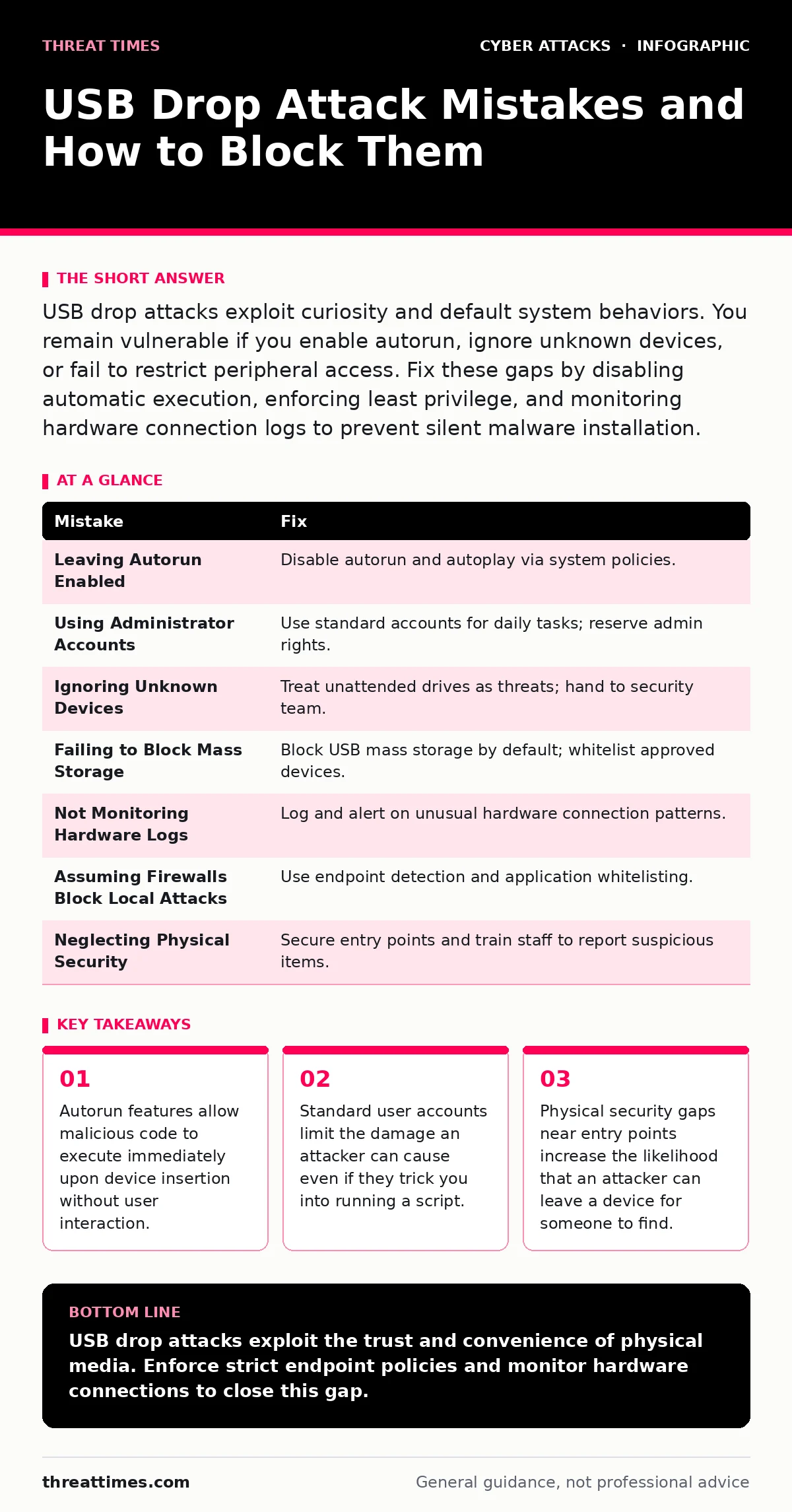
| Mistake | Fix |
|---|---|
| Leaving Autorun Enabled | Disable autorun and autoplay via system policies. |
| Using Administrator Accounts | Use standard accounts for daily tasks; reserve admin rights. |
| Ignoring Unknown Devices | Treat unattended drives as threats; hand to security team. |
| Failing to Block Mass Storage | Block USB mass storage by default; whitelist approved devices. |
| Not Monitoring Hardware Logs | Log and alert on unusual hardware connection patterns. |
| Assuming Firewalls Block Local Attacks | Use endpoint detection and application whitelisting. |
| Neglecting Physical Security | Secure entry points and train staff to report suspicious items. |
Key takeaways
- Autorun features allow malicious code to execute immediately upon device insertion without user interaction.
- Standard user accounts limit the damage an attacker can cause even if they trick you into running a script.
- Physical security gaps near entry points increase the likelihood that an attacker can leave a device for someone to find.
USB drop attacks exploit the trust and convenience of physical media. Enforce strict endpoint policies and monitor hardware connections to close this gap.
Frequently asked questions
Can a USB drive damage my computer physically?
No, a standard USB drive cannot cause physical damage to your hardware. It can only execute software commands or emulate other devices to steal data or install malware.
Do antivirus programs always catch USB malware?
No, antivirus software may miss new or custom malware. It is essential to disable autorun and use application whitelisting to prevent execution before the antivirus can scan the file.
How can I tell if a USB drive is malicious?
You cannot reliably tell by looking at it. Malicious drives can look identical to legitimate ones. The only safe way to determine if a drive is malicious is to analyze it in an isolated, secure environment.
Should I allow employees to use personal USB drives?
Allowing personal USB drives increases risk. It is better to provide secure, company-managed storage solutions or cloud storage. If personal drives are necessary, enforce strict scanning and access controls.
How this guide was produced: written by the Threat Times editorial team with AI assistance, checked against the public references listed below, and reviewed when the facts change. See our editorial policy or report an error.