Mac Malware Removal: Correcting 6 Common Misconceptions
macOS security mechanisms often hide persistence, making standard antivirus scans insufficient for removing deeply embedded threats that operate outside user space.

Removing malware from a Mac requires more than deleting visible files. You must check launch agents, kernel extensions, and browser extensions. Standard antivirus tools often miss rootkits or firmware-level threats. Verify system integrity and reset permissions to ensure complete removal without relying on a single tool.
Misreading: Antivirus Software Provides Complete Protection
Correct reading: Standard antivirus solutions rely on signature matching and heuristic analysis of known threats. These tools scan files in user-accessible directories but often lack the privileges or detection logic to inspect kernel-level components. A malware variant that operates as a kernel extension sits below the operating system’s user space.
The antivirus engine cannot see the code executing in this privileged layer. You might receive a clean scan while the system remains compromised. Endpoint detection and response (EDR) platforms offer deeper visibility by monitoring behavior rather than just file signatures. Still, no single tool guarantees detection of all custom or newly compiled malicious code.
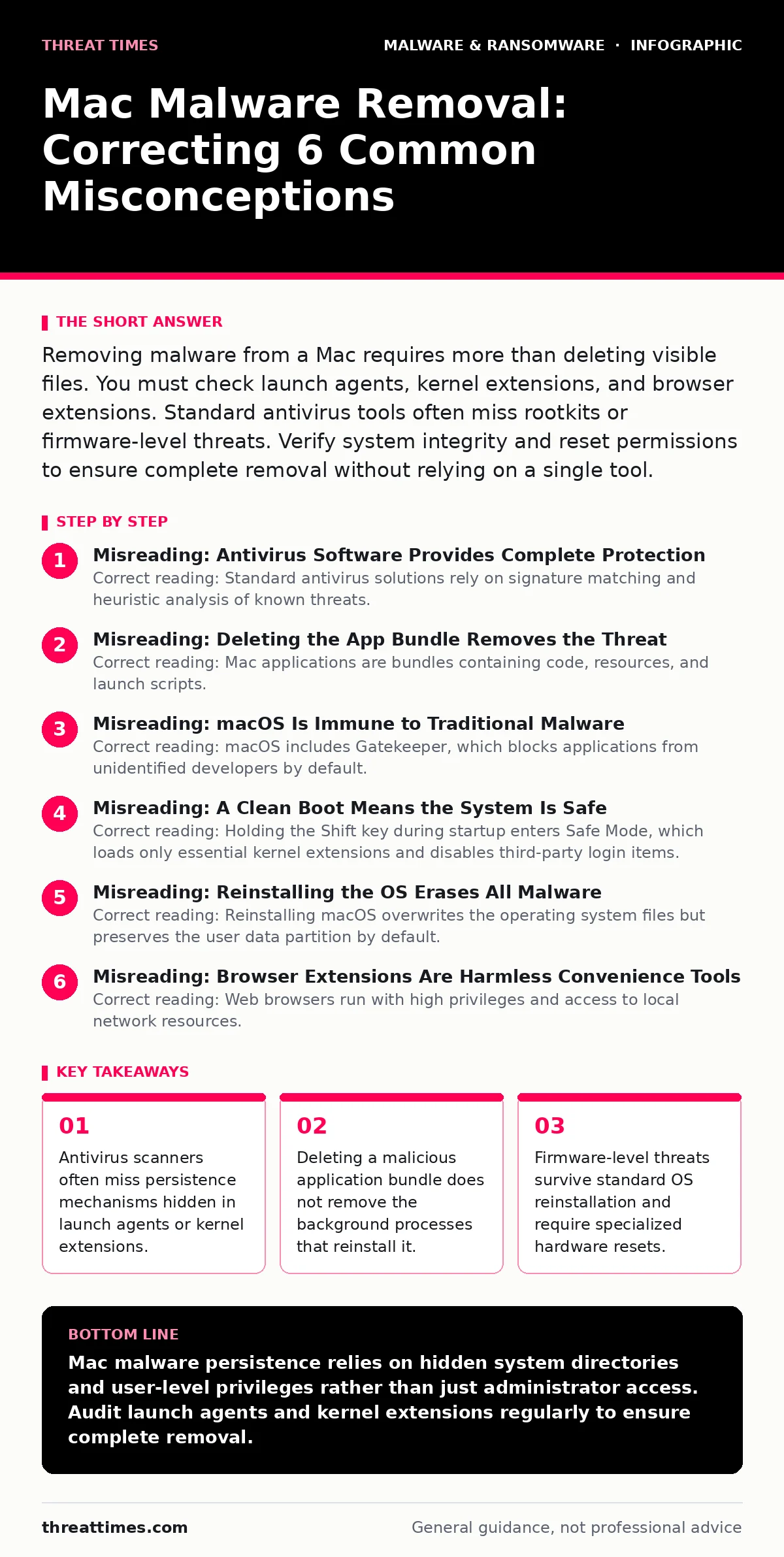
Misreading: Deleting the App Bundle Removes the Threat
Correct reading: Mac applications are bundles containing code, resources, and launch scripts. Dragging an app to the Trash deletes the main executable but leaves behind supporting files. Malware often installs launch agents or launch daemons in hidden system directories. These background processes trigger the malware to restart after a reboot or re-download missing components. You must manually inspect the Library directories for suspicious property list files. Check the user Library and the system Library folders for items you did not install. Removing the primary binary without these supporting files results in a persistent infection that regenerates itself.
Misreading: macOS Is Immune to Traditional Malware
Correct reading: macOS includes Gatekeeper, which blocks applications from unidentified developers by default. This feature reduces the volume of unsolicited infections but does not eliminate risk. Users frequently bypass Gatekeeper by right-clicking an app and selecting Open. This action grants explicit trust to the binary.
Once trusted, the system executes the code without further warning. Malware authors exploit this trust model by bundling malicious payloads inside legitimate-looking utilities. The operating system cannot distinguish between a harmless script and a data-stealing trojan once you have granted execution permission. Assume that any executable from an unverified source carries risk.
Misreading: A Clean Boot Means the System Is Safe
Correct reading: Holding the Shift key during startup enters Safe Mode, which loads only essential kernel extensions and disables third-party login items. This state prevents many malware variants from executing their primary payloads. However, this diagnostic state does not remove the malicious files. It only temporarily disables them. If you assume the absence of symptoms in Safe Mode indicates a clean system, you will miss the underlying infection. You must use this mode to isolate and delete the malicious files before restarting normally. Relying on Safe Mode as a cure rather than a diagnostic tool leaves the threat intact.
Misreading: Reinstalling the OS Erases All Malware
Correct reading: Reinstalling macOS overwrites the operating system files but preserves the user data partition by default. Malware that embeds itself in user directories or modifies system permissions survives this process. Some advanced threats target the firmware or the recovery partition. Firmware malware resides on the chip that initializes the hardware before the operating system loads.
A standard OS reinstallation does not touch this hardware layer. The malware reloads every time the machine powers on. You must perform a secure erase of the entire drive and verify firmware integrity to remove these deep-seated threats. Understanding the ransomware attack chain helps identify where such persistence mechanisms fit.
See also: How Polymorphic Malware Works: The Step-by-Step Mutation Process
Misreading: Browser Extensions Are Harmless Convenience Tools
Correct reading: Web browsers run with high privileges and access to local network resources. Malicious extensions can inject scripts into every webpage you visit. This capability allows them to steal credentials, redirect traffic, or mine cryptocurrency using your device’s resources. Users often install extensions from third-party sources without reviewing their permissions. An extension that requests access to all website data can monitor your banking sessions. Removing the browser does not always delete the extension data stored in user profiles. You must audit extension permissions regularly and remove any tool that does not serve a critical function.
Misreading: Root Access Is Required for Most Mac Malware
Correct reading: Many Mac malware variants operate entirely within the user space. They do not need administrator passwords to install launch agents in the user Library directory. These agents run with the same privileges as the user account. This design allows the malware to persist across reboots without triggering security alerts associated with system-wide changes. Users often focus on protecting their administrator password while neglecting account-level security. The malware can access any file the user can access. This includes documents, browser cookies, and saved passwords. Limiting what the user account can access reduces the impact of such infections.
Misreading: Offline Storage Is Completely Secure
Correct reading: Users often believe that disconnecting from the network renders a Mac immune to malware. While this prevents remote command and control communication, it does not stop local execution. Malware can still harvest data, encrypt files, or prepare payloads for exfiltration once the connection is restored. USB device control policies are necessary to prevent the transfer of malware via physical media. A malicious USB drive can execute autorun scripts or deliver firmware updates that compromise the system. Physical access remains a significant attack vector regardless of network status.
Misreading: Open-Source Packages Are Automatically Safe
Correct reading: Developers often install libraries from public repositories to speed up application development. Malicious npm packages and malicious PyPI packages can contain hidden code that executes during installation. This code can scan the local environment for secrets or establish backdoors. The operating system cannot inspect the intent of the code within these packages. You must verify the integrity of dependencies before installation. Use checksums and signed packages where available. Assume that any external code carries the risk of supply chain compromise.
Key takeaways
- Antivirus scanners often miss persistence mechanisms hidden in launch agents or kernel extensions.
- Deleting a malicious application bundle does not remove the background processes that reinstall it.
- Firmware-level threats survive standard OS reinstallation and require specialized hardware resets.
Mac malware persistence relies on hidden system directories and user-level privileges rather than just administrator access. Audit launch agents and kernel extensions regularly to ensure complete removal.
Frequently asked questions
Can I remove malware without reinstalling the OS?
Yes, if the malware operates in user space. You must manually delete launch agents, kernel extensions, and browser extensions. Reinstallation is only necessary for firmware-level threats or corrupted system files.
Does macOS Gatekeeper block all malware?
No, Gatekeeper blocks apps from unidentified developers. It does not block apps from identified developers that have been compromised. It also does not protect against scripts or malicious browser extensions.
How do I know if my Mac has firmware malware?
Firmware malware is difficult to detect. Look for unauthorized network traffic, unexpected system restarts, or hardware anomalies. Specialized tools are required to inspect the firmware layer directly.
Is deleting the app bundle enough to remove a virus?
No, the app bundle is often just the installer. The malware likely installed background processes in the Library directories. You must remove these persistence mechanisms to fully eliminate the threat.
How this guide was produced: written by the Threat Times editorial team with AI assistance, checked against the public references listed below, and reviewed when the facts change. See our editorial policy or report an error.