Implement Full Disk Encryption: A Step-by-Step Technical Guide
Full disk encryption protects data at rest but leaves it vulnerable while in memory, creating a specific attack window that many organizations overlook during implementation.

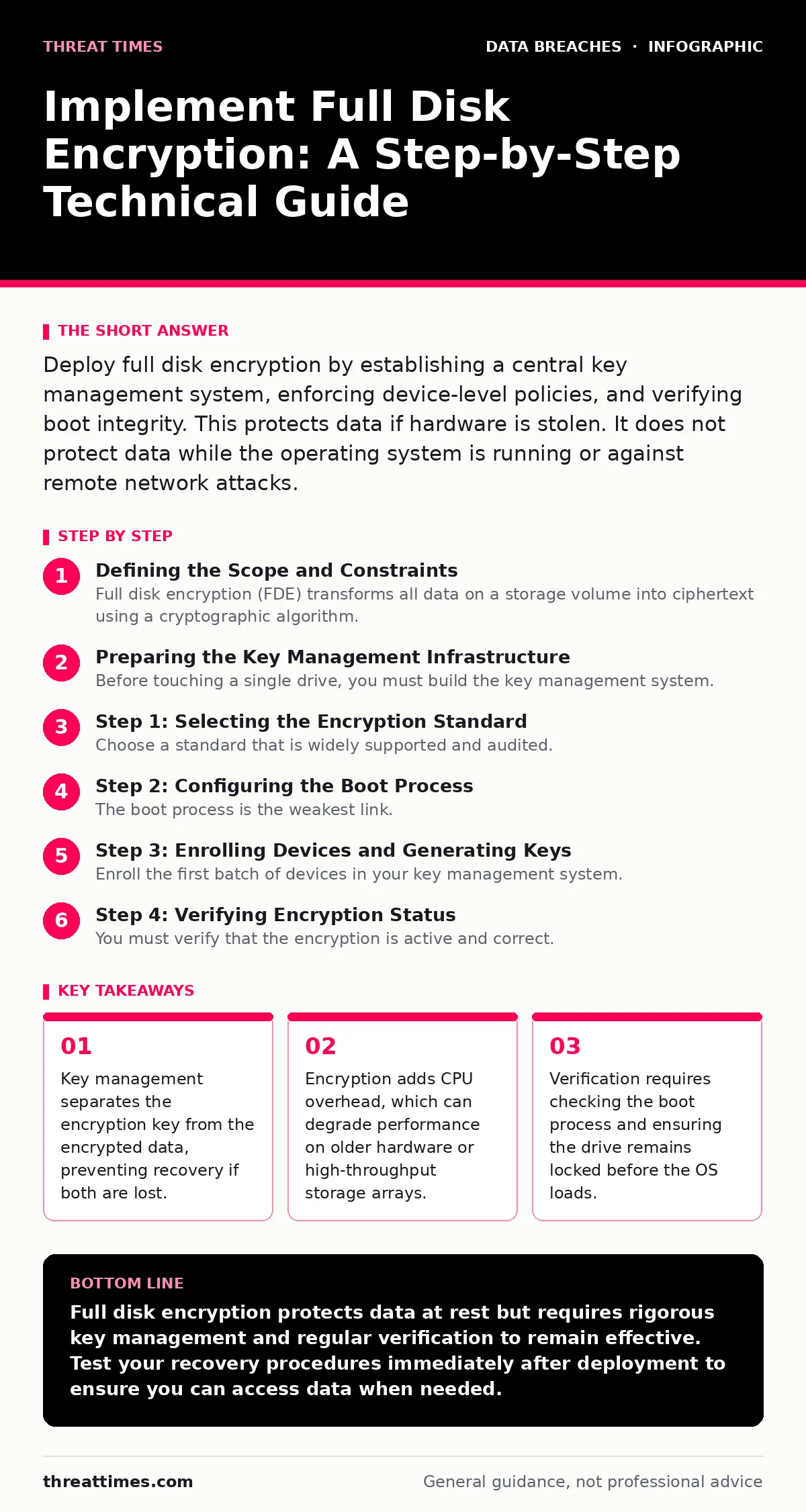
Deploy full disk encryption by establishing a central key management system, enforcing device-level policies, and verifying boot integrity. This protects data if hardware is stolen. It does not protect data while the operating system is running or against remote network attacks.
Defining the Scope and Constraints
Full disk encryption (FDE) transforms all data on a storage volume into ciphertext using a cryptographic algorithm. The system decrypts data on the fly when authorized software requests it. This protects against physical theft of laptops, servers, or mobile drives. It does not protect against malware that runs after the operating system has booted.
Imagine an attacker steals a laptop while it is sleeping. Without FDE, they can remove the drive and read the files. With FDE, the drive is useless without the key. However, if the laptop is awake and the user is logged in, the attacker can access the decrypted memory. This distinction defines the boundary of your protection.
You must decide whether to use software-based encryption or hardware-based encryption. Software solutions run on the CPU and consume processing cycles. Hardware solutions use a dedicated chip on the drive or motherboard. Hardware is faster but may have fewer audit logs. Choose based on your performance requirements and security audit needs.
Preparing the Key Management Infrastructure
Before touching a single drive, you must build the key management system. Encryption is only as strong as the key storage. If you store the key on the same drive as the data, you have no protection. If you lose the key, you lose the data permanently.
Create a centralized key server that is separate from the endpoints. This server stores the master keys used to unlock the devices. You must implement role-based access control on this server. Only authorized administrators should be able to retrieve or rotate keys.
Consider the recovery process. Users will forget passwords. If the system cannot recover the key, the device becomes a paperweight. Integrate your FDE solution with your existing user access provisioning workflows. This ensures that when an employee leaves, their access is revoked, and their keys are rotated or destroyed.
Step 1: Selecting the Encryption Standard
Choose a standard that is widely supported and audited. Avoid proprietary algorithms that cannot be independently verified. Use Advanced Encryption Standard (AES) with a key length of at least 256 bits. This is the industry standard for symmetric encryption.
Verify that your operating system supports this standard natively. Most modern operating systems include built-in FDE capabilities. Using native tools reduces the attack surface by eliminating third-party drivers. It also simplifies updates and patching.
Step 2: Configuring the Boot Process
The boot process is the weakest link. If an attacker can modify the bootloader, they can bypass the encryption prompt. You must enable Secure Boot on UEFI systems. Secure Boot ensures that only signed bootloaders can run.
Configure the system to require a password or PIN before the operating system loads. This password unlocks the key that decrypts the drive. Do not use a PIN that is the same as the user’s login password. Use a separate, stronger passphrase for the disk unlock.
Test the boot sequence on a single device. Verify that the system halts and waits for input before loading the OS. If the system boots automatically, your configuration is incorrect. Adjust the BIOS or UEFI settings to enforce the pause.
Step 3: Enrolling Devices and Generating Keys
Enroll the first batch of devices in your key management system. The system generates a unique key for each drive. This key is encrypted with a master key and sent to the central server. The device stores the encrypted key locally.
Ensure that the initial key generation happens in a secure environment. Do not enroll devices that are connected to untrusted networks. This prevents man-in-the-middle attacks during the enrollment phase.
Monitor the enrollment logs. Look for failures or timeouts. A failed enrollment means the device is not protected. Investigate and re-enroll these devices immediately. Keep a record of which devices are enrolled and which are not.
Step 4: Verifying Encryption Status
You must verify that the encryption is active and correct. Do not assume that enabling the feature means it is working. Use command-line tools or management consoles to check the status.
Look for indicators that the drive is fully encrypted. Wait for this process to finish. Do not reboot the device during this phase.
Step 5: Testing Recovery Procedures
Simulate a lost password scenario. Attempt to unlock a device using the recovery key from your central server. If this fails, your recovery process is broken. Fix the integration between your FDE solution and the key server.
Simulate a hardware failure. Replace the drive and attempt to restore the data from a backup. Verify that the backup was also encrypted. If the backup is unencrypted, you have created a new vulnerability.
Document the recovery steps. Train your support staff on how to help users who are locked out. Include time estimates for recovery. This manages user expectations during an incident.
Ongoing Maintenance and Upkeep
Encryption is not a set-and-forget solution. You must monitor the health of the encryption keys. Rotate keys periodically, especially if an administrator leaves the organization. This limits the exposure window if a key is compromised.
Check for firmware updates on your drives and motherboards. Vulnerabilities in the hardware can bypass encryption. For example, some older firmware allowed access to the key store without the password. Apply patches promptly.
Review access logs on your key management server. Look for unusual patterns, such as multiple failed unlock attempts. This could indicate a brute-force attack or a stolen device. Investigate these alerts immediately.
Verification Checklist
Use this checklist to ensure your implementation is complete.
- Secure Boot is enabled on all UEFI devices.
- Encryption keys are stored on a separate, secure server.
- Recovery keys are tested and documented.
- Firmware is up to date on all storage devices.
- Access logs are monitored for anomalies.
Handling Edge Cases and Failures
Imagine a device that fails to boot after a firmware update. The encryption state may be corrupted. You must have a process for wiping and re-imaging these devices. Do not attempt to repair the encryption manually.
Consider devices that are used in high-security environments. These may require additional controls, such as multi-factor authentication for the unlock process. Evaluate the trade-off between security and usability.
If you suspect a key has been compromised, revoke it immediately. Re-encrypt the affected devices with a new key. This process may take time and disrupt operations. Plan for this downtime in your incident response plan.
Key takeaways
- Key management separates the encryption key from the encrypted data, preventing recovery if both are lost.
- Encryption adds CPU overhead, which can degrade performance on older hardware or high-throughput storage arrays.
- Verification requires checking the boot process and ensuring the drive remains locked before the OS loads.
Full disk encryption protects data at rest but requires rigorous key management and regular verification to remain effective. Test your recovery procedures immediately after deployment to ensure you can access data when needed.
Frequently asked questions
Does full disk encryption protect against ransomware?
No, ransomware encrypts files while the system is running. FDE only protects the drive if it is powered off or stolen. You need endpoint detection and response tools to stop ransomware.
Can I use the same password for boot and login?
You can, but it is less secure. If an attacker gains physical access and observes your login password, they can also unlock the drive. Use a separate, stronger passphrase for the disk unlock.
How does encryption affect battery life?
Encryption adds CPU overhead, which can reduce battery life on laptops. The impact is usually small on modern hardware, but it can be noticeable on older devices. Monitor battery usage after deployment.
What happens if I forget the recovery key?
The data on the drive is permanently lost. There is no backdoor in strong encryption. This is why you must store recovery keys in a secure, accessible location.
How this guide was produced: written by the Threat Times editorial team with AI assistance, checked against the public references listed below, and reviewed when the facts change. See our editorial policy or report an error.