GitHub Copilot sessions now continue in VS Code with full context
Developers can move GitHub Copilot agent sessions into Visual Studio Code to review diffs and run tests without losing conversation history.
Key points
- GitHub published a guide on continuing Copilot app sessions in VS Code.
- The feature preserves the conversation, code changes, and working context.
- Users can review diffs and edit code directly in the editor’s worktree.
GitHub published a guide on continuing GitHub Copilot agent sessions in Visual Studio Code. The new workflow allows developers to move an active session from the Copilot app into their editor. This transfer keeps the conversation, code changes, and working context intact.
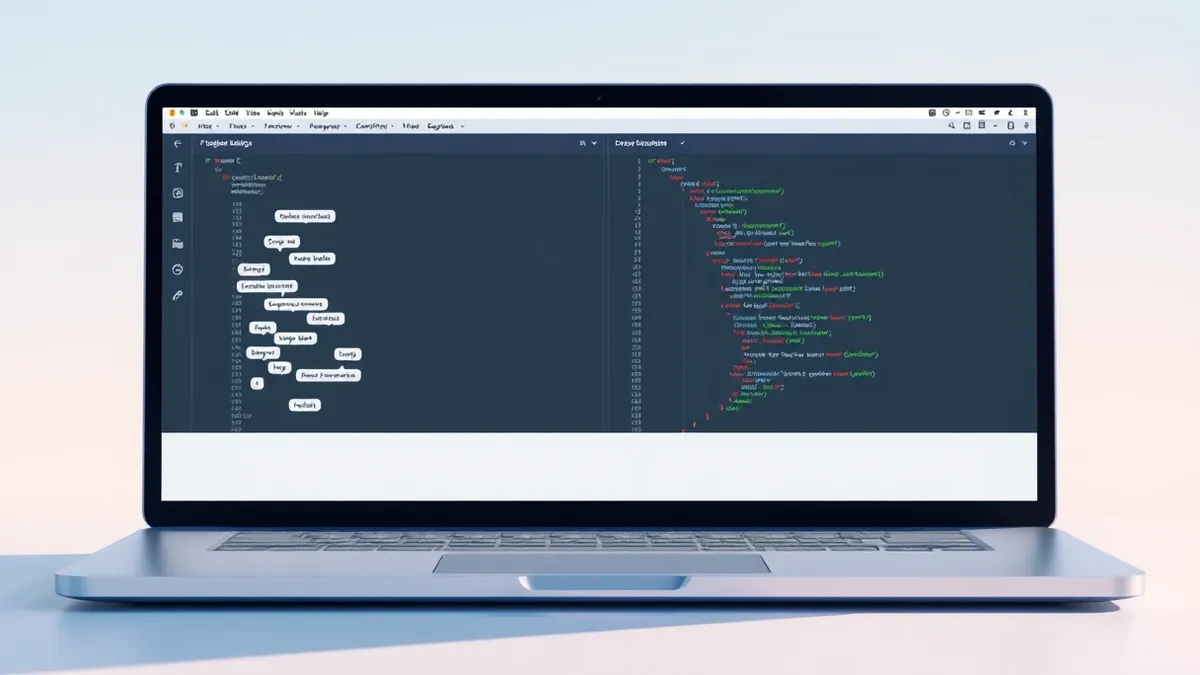
Developers can now inspect implementation details and adjust lines by hand in VS Code. They do not need to start over or summarize history in a new chat. The session opens with the task, plan, and conversation available in the sidebar.
Workflow and Context Preservation
The process begins by selecting Open in VS Code from the Copilot app session. If multiple editors or installations are present, the user chooses the preferred one. VS Code then opens the project using the worktree associated with that specific session.
The editor displays the existing session in the Copilot sidebar. This provides three connected pieces of the original work. The session context remains available for reference. The diff shows the files and lines changed by the agent. The worktree is the same isolated environment the session used.
Users are continuing the existing session rather than reconstructing it. They do not need to copy files between directories. Manual changes build directly on the agent’s work within the same branch.
Review and Testing Procedures
Before editing, developers should inspect the diff in the Source Control view. They can select a file to review changes line by line. GitHub advises checking that the implementation follows repository conventions. Error states and edge cases must be handled appropriately.
Users should verify that no unrelated files or behaviors were modified. The preserved conversation can explain how Copilot arrived at the implementation. If something is unclear, developers can continue prompting Copilot in the sidebar. They can also ask for further changes without describing the task from the beginning.
Once changes are understood, users can edit files directly in VS Code. This is useful for adjustments that are faster to make by hand. The exact testing commands depend on the repository. Users should run the project’s normal validation workflow in the integrated terminal.
Treat agent-generated changes like code written by a person. Run relevant tests and inspect failures. If a development server prints a localhost URL, open it to test the change. For UI changes, verify requested behavior and nearby states like loading or error conditions.
What should you do?
Check if your VS Code installation supports opening Copilot app sessions. Review the diff carefully before merging any agent-generated code. Run your standard test suite to verify functionality. Ensure no unrelated files were modified by the agent.
What to do and how to stay safe: GitHub
- Verify your VS Code version supports the Open in VS Code feature for Copilot sessions.
- Inspect the source control diff line by line to ensure no unintended changes were made.
- Run your project's standard test suite and validation scripts in the integrated terminal.
- Review the conversation history in the sidebar to understand the agent's implementation logic.
Step-by-step guide: Prompt Injection Warning Signs: How to Spot AI Manipulation
General security guidance from the Threat Times newsroom. It is not confirmed advice from the organisations named in this story.
Frequently asked questions
Does moving a session to VS Code lose the chat history?
No, the session context including the task, plan, and conversation remains available in the sidebar.
Do I need to copy files to continue working in VS Code?
No, VS Code opens the same isolated worktree the session used, so manual changes build directly on the agent's work.
Can I ask Copilot for more changes after opening in VS Code?
Yes, because the session and worktree remain connected, you can prompt Copilot for revisions without restating the task.